 You want to chat with a buddy on Yahoo! Messenger but his status on Yahoo! says Off-Line. There are two possibilities here - your friend could be really offline or he may have logged into Yahoo! Messenger in “Invisible Mode” to avoid interruptions. (Yahoo! Messenger has a Stealth settings feature that lets you choose the people who see you as online and offline.)
 You can however beat that mask easily with services like Xeeber or VNGrabber that reveal the exact status of your Yahoo! Messenger friends. All you have to do is type the Yahoo! Messenger username and you will instantly know the exact online status of that person. Time to put on your detective gloves.
Visit:http://www.xeeber.com/
Showing posts with label How to. Show all posts
Showing posts with label How to. Show all posts
Sunday, February 1, 2009
Surprise Yahoo! Messenger Friends Who Pretend To Be Offline
Labels:
How to,
InterNet Tips


Thursday, January 8, 2009
Convert docx and other Office 2007 files to HTML with Gmail

Use Gmail as Office 2007 to HTML converter
You need no hacks to read those Word 2007 files (docx) files without Office 2007.
Just mail all the Office 2007 document(s) to your own Gmail account and click the View as HTML link near the email attachment to convert those files into text / HTML format that can be viewed in the web browser itself.

Gmail retains Docx formatting in HTML
This easy conversion method retains the document formatting (no images though) and works with docx, pptx and xlsx
Labels:
Google Tips,
How to,
InterNet Tips,
Tips,
Tricks
Thursday, January 1, 2009
Thursday, January 1, 2009 How to remove RAVMON Virus from your PC ? Show hidden files and folders not working ? Computer shuts down automatically ?

Is your right click context menu showing some Chinese scripts ? Is your show hidden files and folders not working ? Is your command prompt , Registry Editor and task manager disabled ??
If all these things are happening to your Computer , the reason is that it has got infected by a virus named " RAVMON " .What can this Virus do ??
If all these things are happening to your Computer , the reason is that it has got infected by a virus named " RAVMON " .What can this Virus do ??
- Disables task manager , Registry Editor and Command prompt .
- Right click menu shows some Chinese scripts as shown in the figure.
- Computer shutdown automatically and slogs a lot.
- Folder Options disappear
- Show hidden files and folders Option won't work.
With all these things not working , I can understand what can go with you !! I saw this thing on my friends PC . Then only I decided to write the solution for this.So how are you going to remove this ?
Download it and remove the Virus.
Download the RAVMON virus removal ToolDownload it and remove the Virus.
Note : Wait for the page to load and then click start download

One you download the tool , you can see the menu as shown in the figure.Click on the three of them.and press OK.If you are not infected with RAVMON then the tool automatically shows the error message.So download it and enjoy using your PC.
Tip By- http://www.tricksystem.com
Labels:
How to,
Tips,
Tricks,
Useful Articles
Monday, December 22, 2008
How to remove Virus from USB Drives
One of the ways by which a virus can infect your PC is through USB/Pen drives. Common viruses such as ’Ravmon’ , ‘New Folder.exe’, ‘Orkut is banned’ etc are spreading through USB drives. Most anti virus programs are unable to detect them and even if they do, in most cases they are unable to delete the file, only quarantine it. Here are the things which you can do if you want to remove such viruses from your USB Drive
Whenever you plug a USB drive in your system, a window will appear similar to the one shown below

Don’t click on Ok , just choose ‘Cancel’. Open the Command Prompt by typing ‘cmd‘ in the run box. In the command prompt type the drive letter: and press enter . Now type dir /w/a and press enter.
This will display a list of the files in the pen drive. Check whether the following files are there or not
- Autorun.inf
- Ravmon.exe
- New Folder.exe
- svchost.exe
- Heap41a
- or any other exe file which may be suspicious.
If any of the above files are there, then probably the USB drive is infected. In command prompt type attrib -r -a -s -h *.* and press enter. This will remove the Read Only, Archive, System and hidden file attribute from all the files. Now just delete the files using the command del filename. example del Ravmon.exe. Delete all the files that are suspicious. To be on a safer side, just scan the USB drive with an anti virus program to check whether it is free of virus or not. Now remove the drive and plug it again. In most of the cases, the real culprit turns out to be the “Autorun.inf” file which mostly gets executed when someone clicks Ok in the dialog window which appears above. Thus the infections can spread
Security Tip
Disable the Autoplay feature of USB drives. If you disable the Autoplay feature of USB drives, then there are lesser chances of the virus spreading. A tool which can perform such a function is Tweak UI. Download it from here install it.

Run the program. Now you can disable the Autoplay feature of the removable drives as shown above. By following the above steps, you can keep your USB drives clean.
Tips By- http://www.tricksystem.com
Tips By- http://www.tricksystem.com
Labels:
How to,
Portable .,
Tips,
Tricks,
Useful Articles
Friday, December 12, 2008
How to format a pc with Windows XP


1.Put the CD i mean (your operating system installation CD) (Windows XP or 2000) into your CD-Rom drive.
2.Restart your computer.
3.press F2 ( for get to the boot priority screen.)
4.Use the arrow keys to move to the “Boot” tab.
5.Set first boot device to the CD-Rom drive with the Windows XP or 2000 CD
6.Save
7.Press F10 for Exit
8.Press any key to boot from the CD (quickly). Wait for a while (for loading.....)

9.Your computer should automatically boot from the CD.
10.Press ENTER to setup Windows.( Main Menu )
11.Press F8 to accept the Windows XP Licensing Agreement.Continue installing…
12.Use the ARROW keys to select the partition ( partition or unpartitioned space )
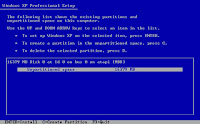
13.Press “D” to delete the main partition or an existing partition ( Where you want to create a new partition. )
14.Or press C to create a new partition.( Type the size (MB-megabytes)
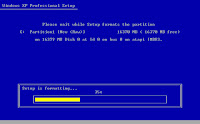
15.Then press ENTER. ( Yes to set up Windows XP on new partition )
Wait while it formats the hard drive.( May be takes about 30 min. depend in CD and PC ).
Windows installation process should start automatically.........
2.Restart your computer.
3.press F2 ( for get to the boot priority screen.)
4.Use the arrow keys to move to the “Boot” tab.
5.Set first boot device to the CD-Rom drive with the Windows XP or 2000 CD
6.Save
7.Press F10 for Exit
8.Press any key to boot from the CD (quickly). Wait for a while (for loading.....)

9.Your computer should automatically boot from the CD.
10.Press ENTER to setup Windows.( Main Menu )
11.Press F8 to accept the Windows XP Licensing Agreement.Continue installing…
12.Use the ARROW keys to select the partition ( partition or unpartitioned space )

13.Press “D” to delete the main partition or an existing partition ( Where you want to create a new partition. )
14.Or press C to create a new partition.( Type the size (MB-megabytes)

15.Then press ENTER. ( Yes to set up Windows XP on new partition )
Wait while it formats the hard drive.( May be takes about 30 min. depend in CD and PC ).
Windows installation process should start automatically.........

Labels:
How to,
Useful Articles,
Windows Tips
Saturday, December 6, 2008
Create a Shortcut to Lock Your Computer
Leaving your computer in a hurry but you don't want to log off? You can double-click a shortcut on your desktop to quickly lock the keyboard and display without using CTRL+ALT+DEL or a screensaver.
To create a shortcut on your desktop to lock your computer:
1.Right-click the desktop.
2.Point to New, and then click Shortcut.
 3.The Create Shortcut Wizard opens. In the text box, type the following:
rundll32.exe user32.dll,LockWorkStation
4.Click Next.
5.Enter a name for the shortcut. You can call it "Lock Workstation" or choose any name you like.
6.Click Finish.
Labels:
How to,
Tips,
Tricks,
Windows Tips
Thursday, December 4, 2008
How do I delete an "undeletable" file
1.Open a Command Prompt window and leave it open.
2.Close all open programs.
3.You now need to close EXPLORER.EXE. The proper way to shutdown Explorer is to raise the "Shut Down Windows" dialog (select "Shut Down..." from the start menu), hold down CTRL+SHIFT+ALT and press the CANCEL button. Explorer will exit cleanly.
Note: The at the 'Shut Down Windows' dialog method of closing Explorer is built into Explorer. (It was specifically designed so that developers writing Shell Extensions could get Explorer to release their Shell Extension DLLs while debugging them).
4.Go back to the Command Prompt window and change to the directory where the undeletable file is located in. At the command prompt type DEL where is the file you wish to delete.
5.Go back to Task Manager, click File, New Task and enter EXPLORER.EXE to restart the GUI shell.
6.Close Task Manager.
Windows 95/98/ME
If you are using Windows 95, 98, or Windows ME, the easiest way to remove an undeleteable file is to boot to a DOS prompt and manually delete the file. Before you do this, you'll want to make a note of the location of the file including the entire path to it. Follow the steps below to delete these types of files.
If you already know the path to the file, please skip to Step 7
1. Click on Start, Find, Files and Folders
2. Type the name of the undeletable file in the Named or Search For box
3. Make sure the Look In box shows the correct drive letter
4. Click on Find Now or Search Now and let the computer find the file
5. Once the file is located, right-click on it and choose properties, make a note of the file location. Usually this is something similar to
c:\windows\system32\undeleteablefilesname.exe
6. Close the search box
7. Locate a boot disk for your version of Windows, if you do not have a boot disk, follow the steps on the link below to create an emergency boot disk.
How to Create an Emergency Boot Disk for Windows
8. Shut down and restart your computer with the boot disk in your floppy drive.
9. The computer will boot to a DOS prompt that will look similar to
c:\
10. Type the following command and press Enter to delete the filer, substituting the phrase with the actual path and file name you discovered in Step 5 above.
del
Example:
del c:\windows\undeleteablefile.exe
11. Remove the boot disk in the floppy drive and restart your computer
12. The file should now be deleted.
Windows XP
In Windows XP, there are a couple ways to remove an undeleteable file, a manual way, and a couple automated ways using some freeware programs. First, I'll show you the manual way.
Manual Method
If you already know the path to the file, please skip to Step 7
1. Click on Start, Search, All Files and Folders
2. Type the name of the undeletable file in the box shown
3. Make sure the Look In box shows the correct drive letter
4. Click Search and let the computer find the file
5. Once the file is located, right-click on it and choose properties, make a note of the file location. Usually this is something similar to
c:\windows\system32\undeleteablefilesname.exe
6. Close the search box
7. Click on Start, Run, and type CMD and Press Enter to open a Command Prompt window
8. Leave the Command Prompt window open, but proceed to close all other open programs
9. Click on Start, Run and type TASKMGR.EXE and press Enter to start Task Manager
10. Click on the Processes tab, click on the process named Explorer.exe and click on End Process.
11. Minimize Task Manager but leave it open
12. Go back to the Command Prompt window and change to the directory where the file is located. To do this, use the CD command. You can follow the example below.
Example: to change to the Windows\System32 directory you would enter the following command and Press Enter
cd \windows\system32
13. Now use the DEL command to delete the offending file. Type DEL where is the file you wish to delete.
Example: del undeletable.exe
14. Use ALT-TAB to go back to Task Manager
15. In Task Manager, click File, New Task and enter EXPLORER.EXE to restart the Windows shell.
16. Close Task Manager
2.Close all open programs.
3.You now need to close EXPLORER.EXE. The proper way to shutdown Explorer is to raise the "Shut Down Windows" dialog (select "Shut Down..." from the start menu), hold down CTRL+SHIFT+ALT and press the CANCEL button. Explorer will exit cleanly.
Note: The
Windows 95/98/ME
If you are using Windows 95, 98, or Windows ME, the easiest way to remove an undeleteable file is to boot to a DOS prompt and manually delete the file. Before you do this, you'll want to make a note of the location of the file including the entire path to it. Follow the steps below to delete these types of files.
If you already know the path to the file, please skip to Step 7
1. Click on Start, Find, Files and Folders
2. Type the name of the undeletable file in the Named or Search For box
3. Make sure the Look In box shows the correct drive letter
4. Click on Find Now or Search Now and let the computer find the file
5. Once the file is located, right-click on it and choose properties, make a note of the file location. Usually this is something similar to
c:\windows\system32\undeleteablefilesname.exe
6. Close the search box
7. Locate a boot disk for your version of Windows, if you do not have a boot disk, follow the steps on the link below to create an emergency boot disk.
How to Create an Emergency Boot Disk for Windows
8. Shut down and restart your computer with the boot disk in your floppy drive.
9. The computer will boot to a DOS prompt that will look similar to
c:\
10. Type the following command and press Enter to delete the filer, substituting the phrase with the actual path and file name you discovered in Step 5 above.
del
Example:
del c:\windows\undeleteablefile.exe
11. Remove the boot disk in the floppy drive and restart your computer
12. The file should now be deleted.
Windows XP
In Windows XP, there are a couple ways to remove an undeleteable file, a manual way, and a couple automated ways using some freeware programs. First, I'll show you the manual way.
Manual Method
If you already know the path to the file, please skip to Step 7
1. Click on Start, Search, All Files and Folders
2. Type the name of the undeletable file in the box shown
3. Make sure the Look In box shows the correct drive letter
4. Click Search and let the computer find the file
5. Once the file is located, right-click on it and choose properties, make a note of the file location. Usually this is something similar to
c:\windows\system32\undeleteablefilesname.exe
6. Close the search box
7. Click on Start, Run, and type CMD and Press Enter to open a Command Prompt window
8. Leave the Command Prompt window open, but proceed to close all other open programs
9. Click on Start, Run and type TASKMGR.EXE and press Enter to start Task Manager
10. Click on the Processes tab, click on the process named Explorer.exe and click on End Process.
11. Minimize Task Manager but leave it open
12. Go back to the Command Prompt window and change to the directory where the file is located. To do this, use the CD command. You can follow the example below.
Example: to change to the Windows\System32 directory you would enter the following command and Press Enter
cd \windows\system32
13. Now use the DEL command to delete the offending file. Type DEL where is the file you wish to delete.
Example: del undeletable.exe
14. Use ALT-TAB to go back to Task Manager
15. In Task Manager, click File, New Task and enter EXPLORER.EXE to restart the Windows shell.
16. Close Task Manager
Labels:
How to,
Tips,
Tricks,
Useful Articles,
Windows Tips
Tuesday, December 2, 2008
How to save a wet cell phone
 How to save a wet cell phone
When a cell phone gets wet, our first instinct is to toss it in the garbage, convinced that it will never work properly again. Before you give in to frustration, consider taking the following steps to help you save a wet cell phone and the expense of purchasing a new one.
1. Get it out of the water as soon as possible.
The plastic covers on cell phones are fairly tight, but water can enter the phone over time. But this time may be quite short - 20 seconds or less. So grab your phone quickly!
2. Remove the battery.
This is one of the most important steps. Don't take time to think about it; electricity and water do not mix. Cutting power to your phone is a crucial first step in saving it. Many circuits inside the phone will survive immersion in water provided they are not attached to a power source when wet.
3. Remove your SIM card.
Some or all of your valuable contacts (along with other data) could be stored on your SIM. To some people this could be more worth saving than the phone itself. SIM cards survive water damage well, but some of the following steps are unnecessary i.e. don't heat it. Just pat it dry and leave it aside until you need to connect your phone to your cellular network. Note that many phones by specific providers, such as Verizon, do not use SIM cards.
4. Dry your phone.
Obviously you need to remove as much of the water as soon as possible, so you can save it from getting into the phone. Use a towel or paper towel to remove as much of the water as possible.
5. Allow the phone to dry. Since you do not want to ruin your phone or lose all of the numbers in your phone book, you need to allow the phone to dry. Also, ringtones and graphics stay with the phone - not the SIM. Don't try putting the battery back on to see if it works as this would risk damaging the phone with a short circuit. Put the phone into a bowl of rice to dry it.
6. Wait. This is the hardest part - leaving your phone alone, with battery and SIM card out, while it dries slowly. Tricks like leaving your phone in a bowl of dry rice or silica gel (like the packets found in shoe boxes) will help to expedite moisture evaporation. They might also have side effects like getting rice in your phone. Just put it someplace reasonably warm and dry, uncovered so water can evaporate, and wait.Apply enough heat to your phone to cause the water to evaporate without waterlogging your digital screen. One of the best things you can do to save a cell phone is to set it on the back of your computer monitor or TV screen over the heat vents. This is usually the perfect amount of heat to fix your phone. The convection action of the heat vents will help carry away the moisture in your phone. Leave the phone on the heat for at least 2-3 days. Another option is to leave it overnight in the oven on warm (make sure to take off the battery first).
7. Test your phone. After you have waited 10 minutes, make sure everything is clean and dry looking and re-attach the battery to the phone and see if it works. If your phone does not work, try plugging it into its charger without the battery, if this works, you need a new battery, if not, wait another few days. If it still won't work, try taking your cell phone to an authorized dealer. Sometimes they can fix it.
TIPS:
1. Don’t put the battery on for at least 3 days or longer if your digital screen is foggy.
2. Place a piece of satin finish scotch tape over your water damage sticker before you drop your cell phone in the water to prevent the water damage sticker from voiding your warranty. This sticker can usually be found under your battery. It’s a small round white sticker, possibly with dots on it. If this sticker gets wet it changes color and your phone is marked for water damage.
3. Remove the tape if you ever have to return your phone for repairs or warranty. (See the note in the ‘Warnings’ section about doing this!)
4. The best way to dry out your phone is to place it in front of an air conditioner or air conditioning vent. Cold air won’t damage your phone (hot air can warp or in extreme cases even melt plastic), and air from an air conditioner is dry, and so will evaporate water faster than you might think (which is why a car air conditioner will de-mist the windshield so effectively, even if the engine hasn’t warmed up yet). Warm air from a reverse-cycle air conditioner works even better, of course. If you dry your phone in this way overnight it should be fine by the morning.
5. Use a hairdryer set on warm; it won’t melt your head so your phone should be safe.
6. Use a food dehydrator.
7. Use the oven on the warm setting (make sure to take out the battery)
WARNINGS:
1. Don’t heat the battery or it could leak acid. If you use an oven or hairdryer, make sure to remove the battery first.
2. If you use alcohol make sure to do so outside, and do not apply heat in any form, not even the gentle heat of a monitor. Do not hook up the bettery till the alcohol smell dissipates.
3. Do not apply heat to your phone other than mentioned above. You don’t want to melt or burn your phone.
4. Warranty fraud is naughty! If you dropped your phone in the can with your other ‘droppings’–are you really going to send it in for a warranty tech to have to open? Yuck!
5. FYI, Most modern phones have more than one liquid damage indicator on them, only one visible to you (and sales/technician agents), and chances are, if the sticker under the battery is triggered (or would be, with the scotch tape trick), then the odds are that the internal stickers you can’t access are tripped as well. This will still result in you paying a voided-warranty fee in the long run, and it may be best to just learn from your mistake (and not make it more financially severe!).
6. Even if all these steps are followed, minerals dissolved in the water can precipitate on solder and component pins, causing corrosion or shorting. Components pins are packed so closely together in a modern cell phone that even a small encrustation can create a short, rendering the phone inoperable.
Labels:
How to,
Tips,
Tricks,
Useful Articles
Monday, December 1, 2008
How to share one Internet connection with another computer using Vista?
If you have more than one computer at home and have only one internet connection, you might be wondering how to use internet in both the computer. Let’s assume there are two computers A and B. Computer A runs on Windows Vista and Computer B runs on Windows XP.
Computer A is connected to Internet via cable, so this will be connected through a LAN card. Now to connect computer B, you will need another LAN card in computer A or if you want to connect to more than one computer, you will need a wired hub.
First let me explain how to connect two computers in LAN.
Step 1: In Vista, before doing this you should enable Sharing and Discovery. You can do that by going to Control Panel -> Network and Sharing Center. Under the section ‘Sharing and Discovery, enable Network discovery, File Sharing, Public folder sharing and others if you want to. (See picture below)
 Here, first network represents connection to internet and second one the local connection with another computer.
Step 2: If your LAN card that is connecting to another computer is installed, it will be shown under Control Panel -> Network Connections.
Step 3: Right click that local area connection and click properties.
Step 4: Under the tab ‘Networking’, click the properties Internet Protocol Version 4 (TCP/IPv4).
Step 5: Click the radio button to ‘Use the following IP’ and give an IP address (For example, IP address: 192.168.0.1 and Subnet Mask: 255.255.255.0)
Step 6: Don’t give any other information, Click Ok and close everything.
Step 7: In computer B, make sure you enable the LAN card which is used to connect to computer ‘A’. Here you need not give any IP information as Computer ‘A’ will assign an IP address dynamically. If it’s not working make sure there are no IP assigned and change the properties to ‘Obtain an IP address automatically’.
Step 8: Test the connection by pinging. (You can do this by typing ping 192.168.0.1 or whichever is Compter ‘A’s IP in the comand prompt)
Sharing the Internet connection of computer ‘A’ with computer ‘B’:
Right click LAN card which is connected to Internet under Control Panel -> Network Connections and click ‘Sharing’ tab and enable both the options to share Internet. (Note: Unless there is another enabled LAN setting you will not be able to see the shared tab under properties)
Click Ok and close. This option is given by the Windows OS known as ICS (Internet Connection Sharing).
Now you can use Internet from both Computer A and Computer B from a single connection.
Labels:
How to,
Tips,
Tricks,
Useful Articles,
Vista Tips
Sunday, November 30, 2008
Replace your Notepad with Advanced NoteTab Text Editor
Notepad is a Simple Text Editor that comes along with your Windows Vista or XP OS but what lacks in Notepad is lack of features. Note Tab Light is a Free ware Text Editor with features like Tab Windows where users can Switch between Multiple Tabs. Users can Open Multiple Text Documents and Switch across them with ease.
Note Tab Software is available in Three Different Versions ranging from a Free Light Version, Pro to a Standard Version. The latest Note Tab Version 5.3 is Compatible with Windows Vista Version.

Note Tab allows users to Open an Unlimited number of Tabs on its Interface.Each file runs in its own Tab and switch between the Windows is pretty easy. Note Tab is some Interesting Features where Users can Extract HTML code out of a Document, Paste Board that can be used to save Text Clips Automatically . Users can choose a Document as a Paste Board. Any content that is added to the Clip board will be Automatically appended with the Content in the Paste Board.
Note Tab also has a clip Library where users can access small Drag and Drop scripts starting from a Text, Audio Clips, HTML Tabs and other Scripting Language Codes. The Advanced Version of the Note Tab has features like replacing Content in a File without Opening the File.
Note Tab Software is available in Three Different Versions ranging from a Free Light Version, Pro to a Standard Version. The latest Note Tab Version 5.3 is Compatible with Windows Vista Version.

Note Tab allows users to Open an Unlimited number of Tabs on its Interface.Each file runs in its own Tab and switch between the Windows is pretty easy. Note Tab is some Interesting Features where Users can Extract HTML code out of a Document, Paste Board that can be used to save Text Clips Automatically . Users can choose a Document as a Paste Board. Any content that is added to the Clip board will be Automatically appended with the Content in the Paste Board.
Note Tab also has a clip Library where users can access small Drag and Drop scripts starting from a Text, Audio Clips, HTML Tabs and other Scripting Language Codes. The Advanced Version of the Note Tab has features like replacing Content in a File without Opening the File.
Saturday, November 29, 2008
How to Save a Laptop from Liquid Damage
 1. Shut it off! Immediately remove the battery, the A/C adapter, and unplug the device after the spill. The biggest danger at first is the device shorting out.
2. Turn it upside down immediately to stop the liquid from traveling deeper into the machine.
3. Clean up any part of the spill you can get to. Use paper towels or any absorbent material that is lint-free.
4. Inspect the keyboard. Some keyboards are designed to protect the internals from liquids:
* Pour out any liquid contained in a keyboard enclosure.
* Remove and clean an easily removable keyboard.
5. Wipe up anything sticky. This may include the screen, the keys on the keyboard, and any buttons. Use a clean, slightly dampened, lint-free cloth.
6. Disconnect and remove any and all external devices.
7. Insulate yourself from static discharge. Static electricity can be very high voltage. Static discharge from your hands and body can destroy even a dry computer. Learn how to Avoid Destroying a Computer With Electrostatic Discharge.
8.Disassemble the case. If you cannot get to the whole spill, then it may be necessary to remove the laptop's case. Most spills will contain chemicals that can corrode internal circuit boards:
* If you aren't comfortable taking your device apart, then get it to someone who is, as soon as possible.
* Pull the hard drive to protect your data.
* Remove as many cards or drives as you can.
9. Remove dry residue. Use a toothbrush or lint-free cloth to gently remove any dried residue from non-water stains such as cola or coffee. Blow the residue away with compressed air.
10. Rinse off the residue. If you spilled anything besides water on the laptop, rinsing it clean will be the most dramatic part. There are several ways to rinse your machine, depending on the kind of spill, and how much risk you are willing to endure:
* Think about what has been spilled on/in your computer, and determine whether it is water soluble or petro-chemical based. In the case of the former, deionized water will work fine. If it is oily, etc., then rinse with denatured alcohol, and then rinse with deionized water.
* Rinse with water. Take any components that have residue (a fresh spill or an old spill of cola) and rinse them under the tap. Most circuit boards and similar non-moving components handle water well, as long as they are not powered. Some internal components with moving parts may not handle water well, for example, fans and CD/DVD drives.
* Rinse with deionized or distilled water. Many people prefer to rinse with deionized water over tap water. Regular water will leave deposits that can cause electrical shorts, but deionized water will rinse clean, dry, and leave nothing behind.
* Don't get too carried away rinsing your machine. Water and laptops do not mix, either. Rinse as much as you need to, and not more. Carefully blot up excess water, if any.
11.Let it dry. Be completely sure that the parts are dry before you proceed. As with rinsing, there are different theories on drying:
* Dry naturally. Prop the machine up, away from surfaces, so that air can circulate in and around the entire unit. Leave the machine to dry for 24 to 48 hours.
* Dry with light heat. Place your deck on a warm radiator or on top of a warm sill or shelf - out of direct sunlight - or near other source of warmth. Do not use high levels of heat, just moderately warm sources of heat. Let it dry for 12 hours, or so. A nearby dehumidifier may improve drying time.
* Never use a hair dryer, as this will cause static problems and fill your machine with more contaminants and dust. A hair dryer at a high setting could also melt some of the plastic components.
12. Clean with a solvent. A second rinse with a solvent-based cleaner is recommended by some, and abhorred by others.
* If you suspect that your first rinse did not remove all of the residue, a chemical rinse of this kind may be worth the risk. The advantages of such a rinse are: there is only one substance to apply and remove; that substance, typically, evaporates; long drying times are not required. The disadvantage is that, if you use the wrong solvents, you can literally dissolve your computer.
* Buy and use 99% (not 90%) isopropyl alcohol. Never, ever use gasoline or acetone to clean computer parts.
* Using a cotton swab, carefully rub or wipe each component of the board, until it is clean.
* Try flux remover, a spray-on can available in electronics stores, rather than isopropyl alcohol.
13.Put the laptop back together, and test it to see if it is working.
Labels:
How to,
Laptop Tips,
Tips,
Tricks,
Useful Articles
Thursday, November 27, 2008
How to Hide specific Drives ?
This tutorial illustrates how to hide and show your computer drives from Windows XP. You can hide or show as you want both drives in your computer and drives in the computer network. This way can be safe for data in your computer and prevent others from accessing to your drives that may contain important information. This example I will hide drive D and you can apply this method to another drive you want, just change a value that I will explain “how to” in detail. Let you hide drives now.
* Access to the Registry Editor program, running regedit.
* Find the path like below,
HKEY_CURRENT_USER\Software\Microsoft\Windows\CurrentVersion\Policies\
Explorer
* Right click on the Explorer folder and select New > DWORD Value.
* Name the registry NoDrives.
 # Double click on NoDrives which is in the right page.
# In the DWORD Value window, select Decimal.
 * In this case I want to hide drive D, so I must fill 8 in Value data. The number you filled varies with drive you want it to be hidden. If you want to hide the other drives, you must put the drive-related number like below,
A=1, B=2, C=4, D=8, E=16, F=32, G=64, H=128, I=256, J=512, K=1024, L=2048, M=4096, N=8192, O=16384, P=32768, Q=65536, R=131072, S=262144, T=524288, U=1048576, V=2097152, W=4194304, X=8388608, Y=16777216, Z=33554432, All drive=67108863
For example, I can hide drive J only if I put the number 512 under selecting Decimal. What to do in case I prefer to hide more than one drive ? That is easy just plus the numbers. To illustrate, I want to hide drive C and E so I put the result number of 4 plus 16 that is 20.
* Click OK button and close the Registry Editor program.
* Log off and Log on your computer. Finish !* Access to the Registry Editor program, running regedit.
* Find the path like below,
HKEY_CURRENT_USER\Software\Microsoft\Windows\CurrentVersion\Policies\
Explorer
* Right click on the Explorer folder and select New > DWORD Value.
* Name the registry NoDrives.
 # Double click on NoDrives which is in the right page.
# In the DWORD Value window, select Decimal.
 * In this case I want to hide drive D, so I must fill 8 in Value data. The number you filled varies with drive you want it to be hidden. If you want to hide the other drives, you must put the drive-related number like below,
A=1, B=2, C=4, D=8, E=16, F=32, G=64, H=128, I=256, J=512, K=1024, L=2048, M=4096, N=8192, O=16384, P=32768, Q=65536, R=131072, S=262144, T=524288, U=1048576, V=2097152, W=4194304, X=8388608, Y=16777216, Z=33554432, All drive=67108863
For example, I can hide drive J only if I put the number 512 under selecting Decimal. What to do in case I prefer to hide more than one drive ? That is easy just plus the numbers. To illustrate, I want to hide drive C and E so I put the result number of 4 plus 16 that is 20.
* Click OK button and close the Registry Editor program.
Labels:
How to,
Tips,
Tricks,
Useful Articles
Subscribe to:
Posts (Atom)
